
OneDrive vs SharePoint vs Azure Files: Where Should Your Files Live?
Executive Summary
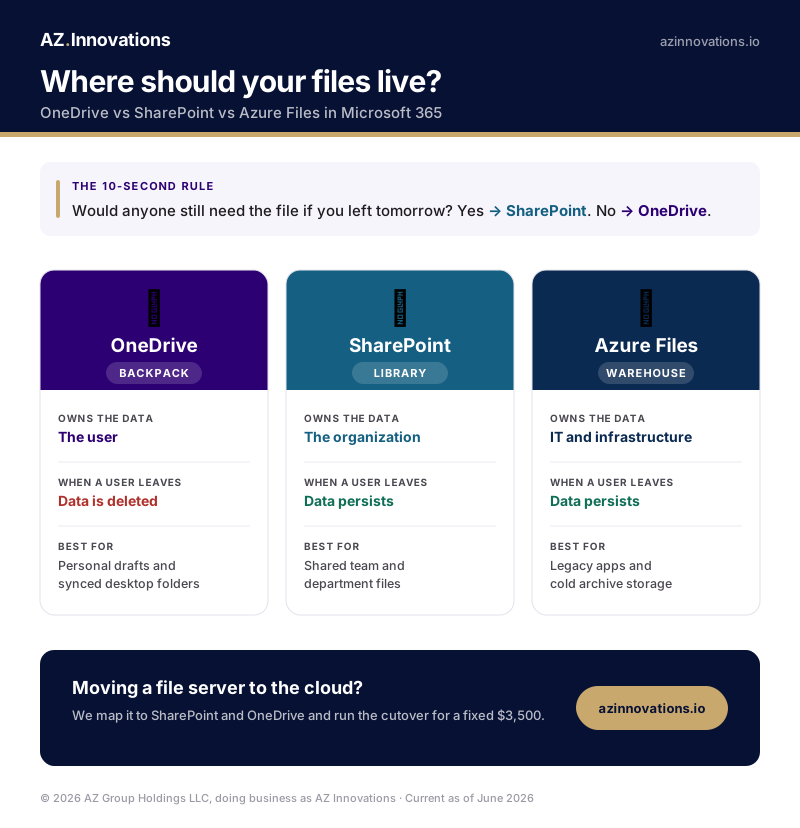
- OneDrive is your personal "Backpack" (Drafts & Private).
- SharePoint is the company "Library" (Published & Shared).
- Azure Files is the "Warehouse" (Legacy Apps & Archives).
- Teams is just a window into SharePoint (The Interface).
The one rule that settles most arguments: if you left the company tomorrow and someone would still need the file, it belongs in SharePoint. If not, it belongs in OneDrive. Everything below is the detail behind that rule.
Microsoft provides a vast toolkit for storage, but having "great tools" doesn't guarantee a secure house. The absolute power of the M365 ecosystem comes from using the right tool for the right use case.
The "At a Glance" Cheat Sheet
| Feature | OneDrive | SharePoint | Azure Files |
|---|---|---|---|
| The Analogy | Your Backpack | The Library | The Warehouse |
| Who Owns Data? | The User (You) | The Organization | IT / Infrastructure |
| When User Leaves | Data is Deleted* | Data Persists | Data Persists |
| Best For | Personal and draft files | Shared and team files | Legacy apps and cold archive |
| Permissions | Ad-Hoc Sharing | Structured Groups | NTFS / Share-level |
Is Azure the same as OneDrive?
No. Azure is a full cloud-computing platform that runs virtual machines, databases, and storage; OneDrive is personal file storage inside Microsoft 365. They are not substitutes, so "Azure vs OneDrive" is really the wrong question. The piece of Azure that compares to OneDrive and SharePoint is Azure Files, the SMB file-share service covered in section 4. The real decision for your company's files is OneDrive vs SharePoint vs Azure Files, and the next list settles it.
When to use each
- Use OneDrive when the file supports one person's work and is not ready to share: drafts, scratch files, synced desktop folders.
- Use SharePoint when several people own or need the file, or the business needs it to outlast whoever created it: shared documents, project files, department drives.
- Use Teams as the interface onto SharePoint. Every Team you create is a SharePoint site underneath, so the files live in SharePoint either way.
- Use Azure Files only when a legacy app needs a real drive letter or UNC path, or you are archiving cold data SharePoint cannot serve. If that is you, the move is a scoped file-server migration rather than a do-it-yourself job.
🎒 1. OneDrive for Business
Think of OneDrive as your employee's physical desk. It is personal. It is private by default.
Best Use Cases
- Drafts & Scratchpads: Files you are working on before they are ready for the team.
- Device Sync (KFM): Syncing your Desktop, Documents, and Pictures folders so if your laptop breaks, you lose nothing.
Critical Governance Risk
OneDrive is NOT a Department Share. We frequently see Finance or HR running out of a single executive's OneDrive shared folder. When that executive leaves, access breaks, data is orphaned, and permissions become a nightmare to audit.
🏢 2. SharePoint Online
SharePoint is the "Vertebrae" of collaboration. If a file belongs to a Project, Team, or Department, it belongs here.
Modern Capabilities
- ✅ Co-Authoring: 10 people editing at once.
- ✅ Versioning: Roll back to yesterday's draft.
- ✅ Metadata: Tagging > Folders.
Security Benefits
- 🔒 Central Audit Logs: See who opened what.
- 🔒 Retention Labels: Auto-delete after 7 years.
- 🔒 Permissions: Group-based access.
Rule of Thumb: If you leave the company, the files in SharePoint stay. This ensures business continuity.
💬 3. Microsoft Teams
Confusion here causes the most sprawl. Teams is not storage. Teams is an interface.
The Governance Trap: If you allow users to create Teams unrestricted, you end up with hundreds of orphaned SharePoint sites. A mess in Teams = A mess in your file architecture.
☁️ 4. Azure Files
Azure Storage is the "Heavy Lifter" for scenarios where SharePoint fails. It supports SMB protocols (like a traditional mapped drive).
When to use Azure Files:
- Legacy Apps: Software that needs a direct UNC path (e.g.
\\server\share) and doesn't speak "Cloud". - Cold Storage: Archiving 10TB of data that nobody opens but you legally can't delete.
- Hybrid Profiles: FSLogix profiles for Azure Virtual Desktop (AVD).
Common Architecture Questions
Can I just use OneDrive for everything?
Technically yes, but you create a massive "Key Person Risk." If that account is compromised or deleted, the business loses access to critical data.
How do I migrate from a File Server?
Don't just "lift and shift." Map your Home Drives (H:) to OneDrive and your Department Drives (S:) to SharePoint Libraries. That mapping, with a tested cutover and a reconciliation report, is our fixed-fee File server to SharePoint and OneDrive migration, $3,500 at standard scope.
OneDrive vs Azure Files: which do I use?
OneDrive is for one person's files inside Microsoft 365. Azure Files is for a legacy application that needs a mapped drive or UNC path, or for cold archive data. If your only reason to consider Azure Files is "we have always had a file server," the better destination is usually SharePoint, and that is a scoping conversation worth having before you pay for separate Azure storage.
Is SharePoint secure?
Yes, but only if configured correctly. The biggest risk is "Broken Inheritance" (messy permissions) and "External Sharing" links that never expire.
Moving off a file server?
Mapping home drives to OneDrive and department drives to SharePoint, with a tested cutover and nothing lost, is a fixed-fee engagement: File server to SharePoint and OneDrive, $3,500 at standard scope. You can scope yours in about a minute. Not sure the cloud is even cheaper than running your own server? We did the five-year math. Moving off Google Workspace instead? Read what survives that move first.
Scope your migrationNeed help implementing this?
We turn these concepts into secure configurations for your tenant.
Request a scoping session